
Terminal provides direct access to system commands, package management, and administrative tasks. While often used by advanced users, it can be launched in multiple simple ways. This tutorial provides 3 methods how to open terminal on Ubuntu.
Method 1 - Ctrl+Alt+T shortcut
The quickest way to launch terminal is through a keyboard Ctrl+Alt+T shortcut. This key combination immediately opens a new terminal window and is enabled by default in most Ubuntu installations.
Method 2 - Search in Activities menu
Terminal can also be opened through the system search interface:
- Press the
Superkey (typically the Windows key) to open the Activities overview. - Start typing terminal.
- Select the Terminal application from the results.
Alternatively, the Activities menu can also be accessed by clicking the Activities button in the top-left corner of the screen.
Method 3 - From Nautilus file manager
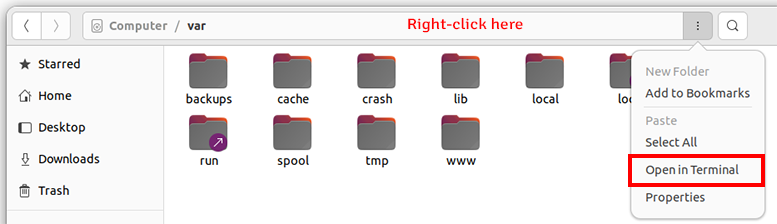
Terminal can be launched directly from the file manager for convenience in a specific directory:
- Open Files (Nautilus).
- Navigate to any desired directory.
- Right-click inside the directory window.
- Choose Open in Terminal.
This method is useful when command execution is needed within a specific directory context.


Leave a Comment
Cancel reply